EN



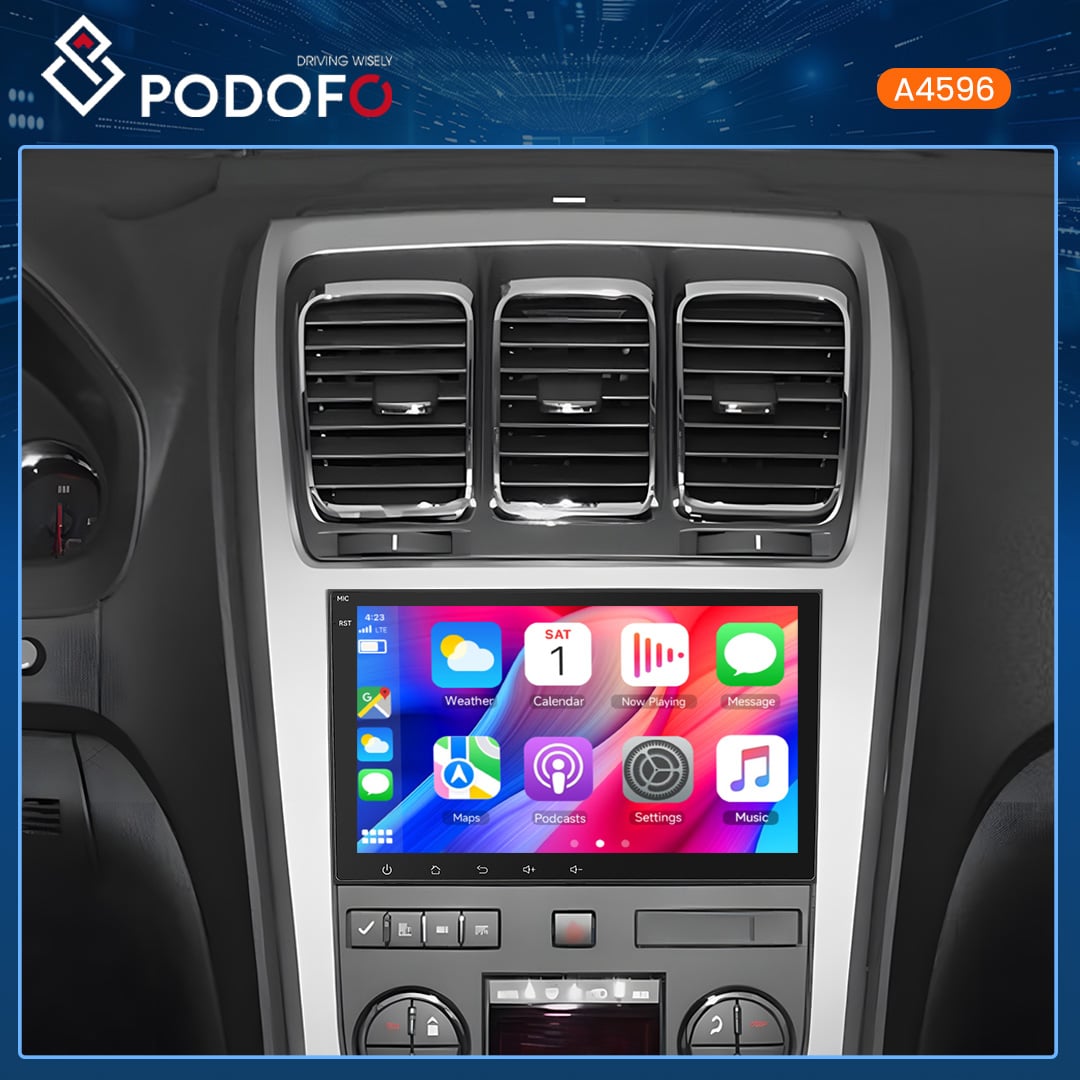
CarPlay connects a compatible smartphone to a vehicle display so drivers can access selected navigation, calls, messages, and audio through a familiar interface. The connection can use a cable or wireless pairing, depending on the phone and the car’s equipment. Understanding how carplay handles setup, data, and controls makes it easier to get a dependable connection without unnecessary distractions.
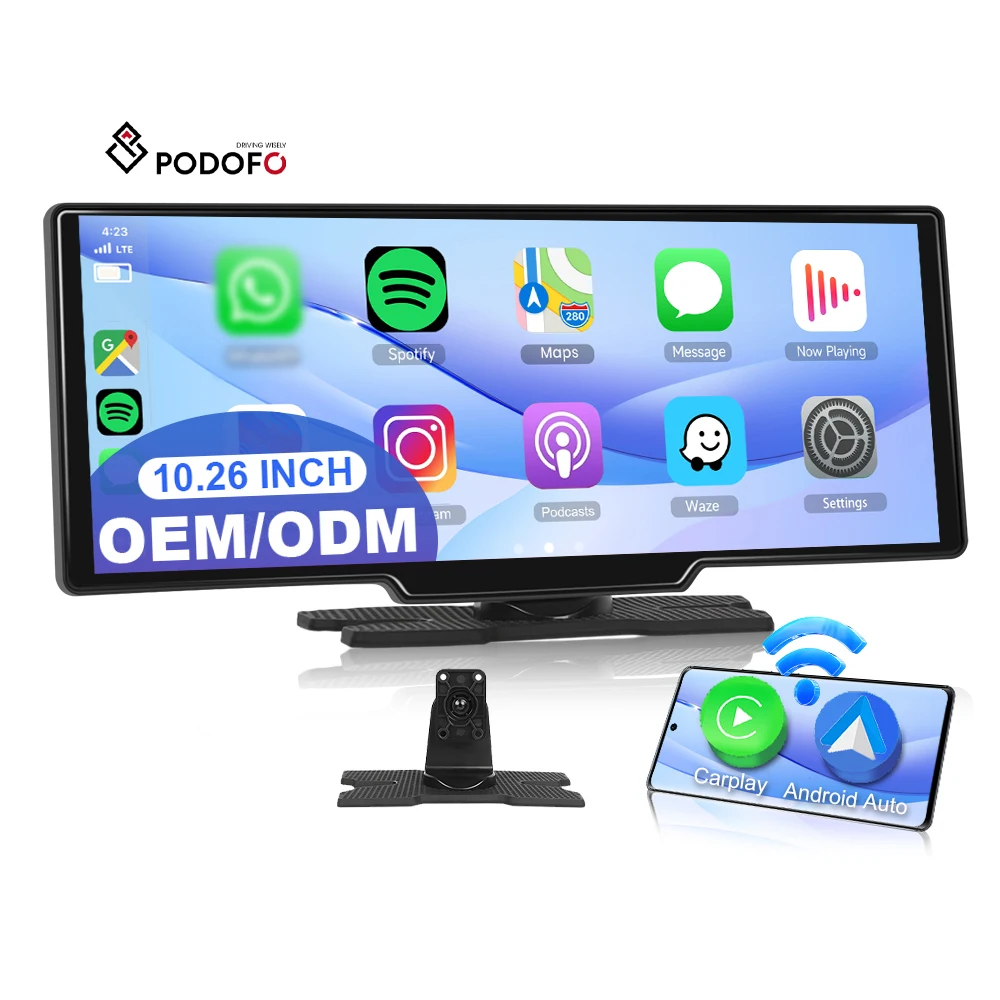
In practical terms, carplay acts as a bridge between the smartphone and the car’s infotainment system. The phone supplies compatible apps and information, while the vehicle screen, speakers, and built-in controls provide ways to interact. This article explains the connection process, the role of each device, and the steps that help carplay feel seamless during everyday driving.
How the CarPlay Connection Works
The smartphone and vehicle share the work
Carplay does not simply copy a phone screen onto the dashboard. Instead, the compatible phone runs supported apps and presents a driving-focused interface on the vehicle display. The carplay interface limits the available functions to options designed for use in the vehicle, while the phone continues to manage its own account, app data, and network connection.
This division of work explains why the experience depends on both devices. A carplay-ready head unit provides the display, audio output, and controls, while the smartphone provides the software and often the internet connection. When the phone is connected, carplay can show navigation guidance, incoming calls, selected messages, and audio playback without requiring every function to be built into the car.
Wired and wireless links serve different needs
With wired carplay, a USB cable connects the phone to a compatible port in the vehicle. The cable establishes the data link and may charge the phone at the same time. This method is straightforward for drivers who prefer a physical connection, but the cable, port condition, and cable compatibility can affect whether carplay starts consistently.
Wireless carplay uses Bluetooth to begin pairing and Wi-Fi to support the connection, where the vehicle system offers that capability. After initial setup, the phone may reconnect when the driver enters the car and the required settings remain enabled. Wireless carplay reduces cable handling, though drivers should consider phone battery use and verify that their specific vehicle supports wireless operation.
Setting Up CarPlay for a Smooth Start
Prepare both devices before pairing
Before connecting carplay, check that the phone’s operating system and the vehicle’s infotainment software are ready for use. Confirm that carplay is supported by the car or head unit, and locate the correct USB data port if using a cable. A port intended only for charging may not establish the data connection that carplay requires.
For wireless carplay, enable Bluetooth and Wi-Fi on the phone, then follow the vehicle’s pairing prompts. For a wired setup, connect the phone with a reliable data-capable cable and approve any permission request shown on its screen. These small preparation steps help carplay recognize the right phone and prevent confusion with previously paired devices.
Complete permissions and personalize access
During first-time setup, the phone and vehicle may request permission to use carplay, contacts, notifications, or voice features. Review the prompts and choose settings that suit the driver and the organization’s privacy expectations. Permissions influence which information appears in the carplay interface, so accepting or declining them can change the available experience.
Once connected, arrange compatible apps and vehicle settings around common journeys. Drivers can choose preferred navigation and audio apps, adjust screen appearance where supported, and learn how steering-wheel buttons interact with carplay. Keeping the interface focused helps reduce menu searching and makes it easier to use carplay without diverting attention from driving.
Keeping CarPlay Seamless on the Road
Use the right controls for each task
A seamless carplay session depends on using the control that fits the task. The touchscreen can select destinations or audio, while voice control can handle many requests without extended tapping. Steering-wheel controls may adjust volume, change tracks, or activate voice interaction, depending on the vehicle and its configuration.
Drivers should set destinations and choose content before moving whenever possible. During travel, carplay is most useful when requests are brief and the interface remains familiar. Voice guidance can keep navigation information audible, and simple controls can reduce the need to look away. The vehicle’s driving rules and the driver’s judgment always take priority over interacting with carplay.
Resolve common connection interruptions
If carplay does not appear, begin with basic checks rather than changing several settings at once. Confirm that the phone is unlocked during initial authorization, that the vehicle input is set correctly, and that the cable or wireless pairing is active. Reconnecting the phone or restarting the infotainment system can help identify whether the interruption is temporary.
For repeated wired failures, inspect the cable and try the designated data port; damaged connectors or lint can interrupt carplay. For wireless issues, remove an outdated pairing from the phone and vehicle, then pair them again according to the system prompts. Software updates may also address compatibility problems, so check both devices when carplay remains unreliable.
In vehicles without built-in support, a compatible aftermarket display or head unit may provide carplay access, but installation and feature support vary. Check how the unit connects, whether it supports wired or wireless use, and how its audio integrates with the vehicle before selecting equipment. A portable screen can offer another route, but drivers should confirm mounting, power, and sound arrangements suit the cabin.
FAQ
Does CarPlay work without a cable?
Yes, carplay can work wirelessly when both the smartphone and vehicle system support wireless pairing. The first connection may require Bluetooth, Wi-Fi, and on-screen approval. If either device only supports a wired connection, use a compatible data cable to start carplay.
Does CarPlay use the car’s internet connection?
Typically, the connected phone provides internet access for online carplay features such as live navigation information or streaming audio. The exact behavior depends on the phone, app, and vehicle setup. Downloaded content and some functions may remain available when the phone has no data connection.
Why does CarPlay disconnect while driving?
A carplay disconnection can result from a loose cable, an unreliable USB port, wireless interference, or a pairing or software issue. Check the connection safely when parked, update compatible devices if needed, and pair again if the problem continues. Avoid troubleshooting through menus while the vehicle is moving.